
Description
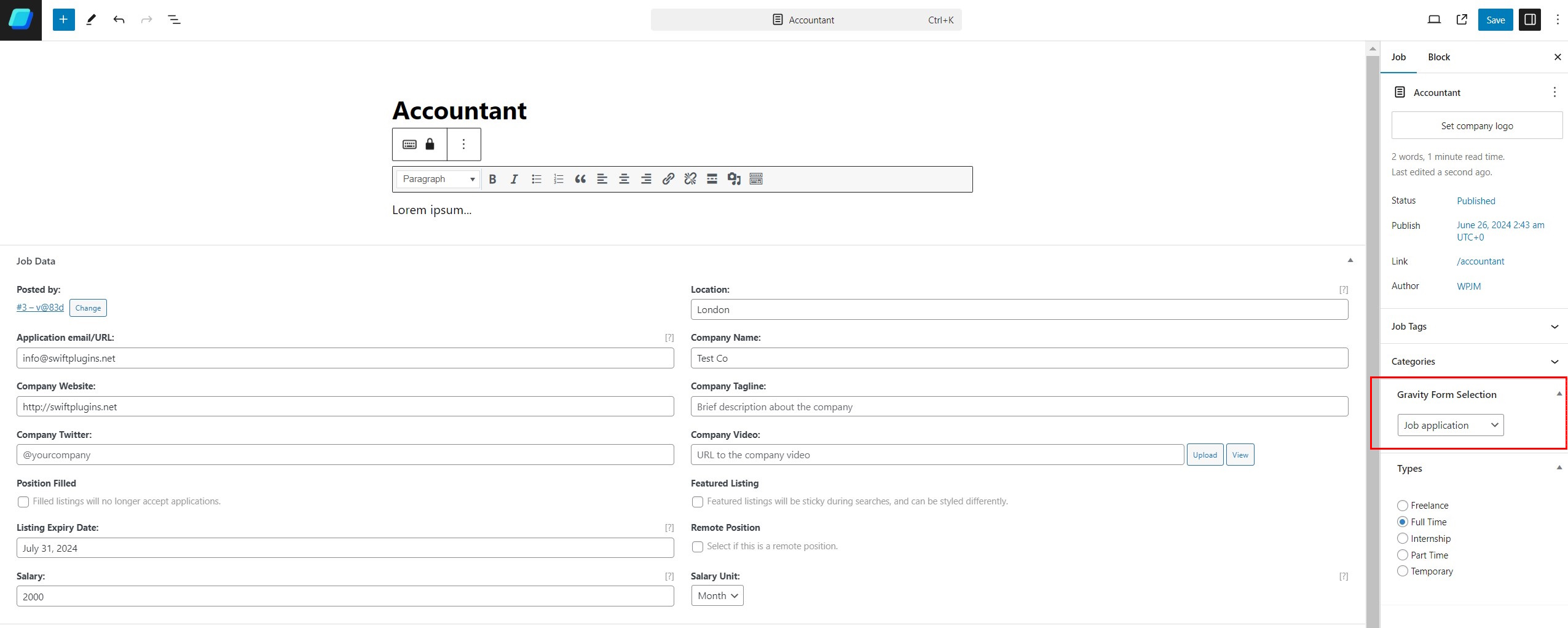
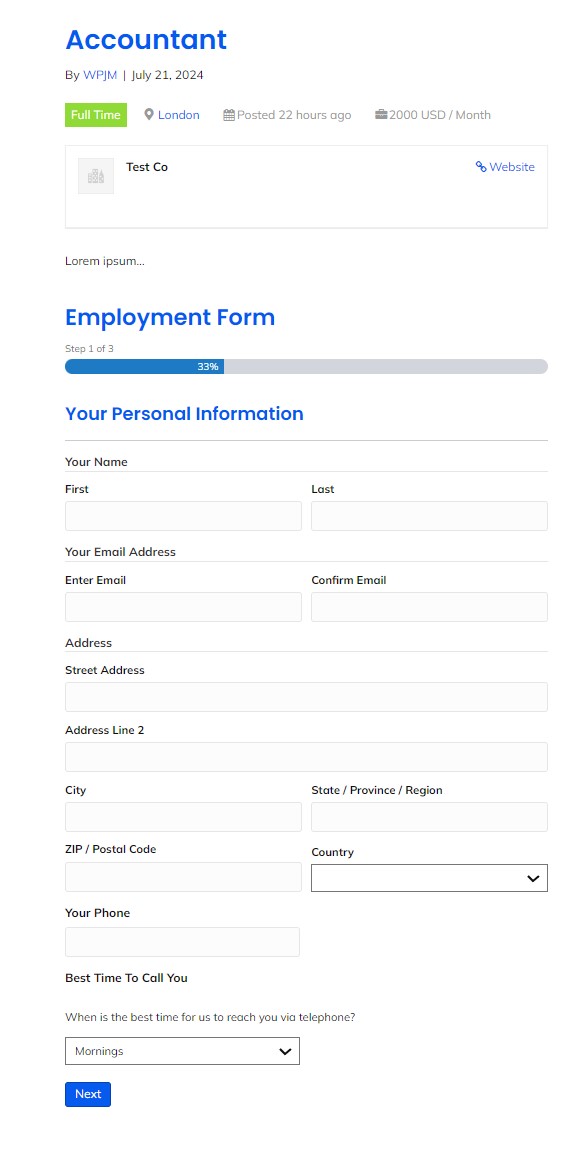
By default WP Job Manager only shows an email link for a job application, but now you can use Gravity Forms for your WP Job Manager application forms. Create any form and assign it to your newly created job listing. You benefit from the power of Gravity Forms along with all its integrations including notifications, redirects and 3rd party integrations.
Additional Features
Create powerful forms using Gravity Forms and use that for your job application form
You have the ability to use different application forms for different job listings
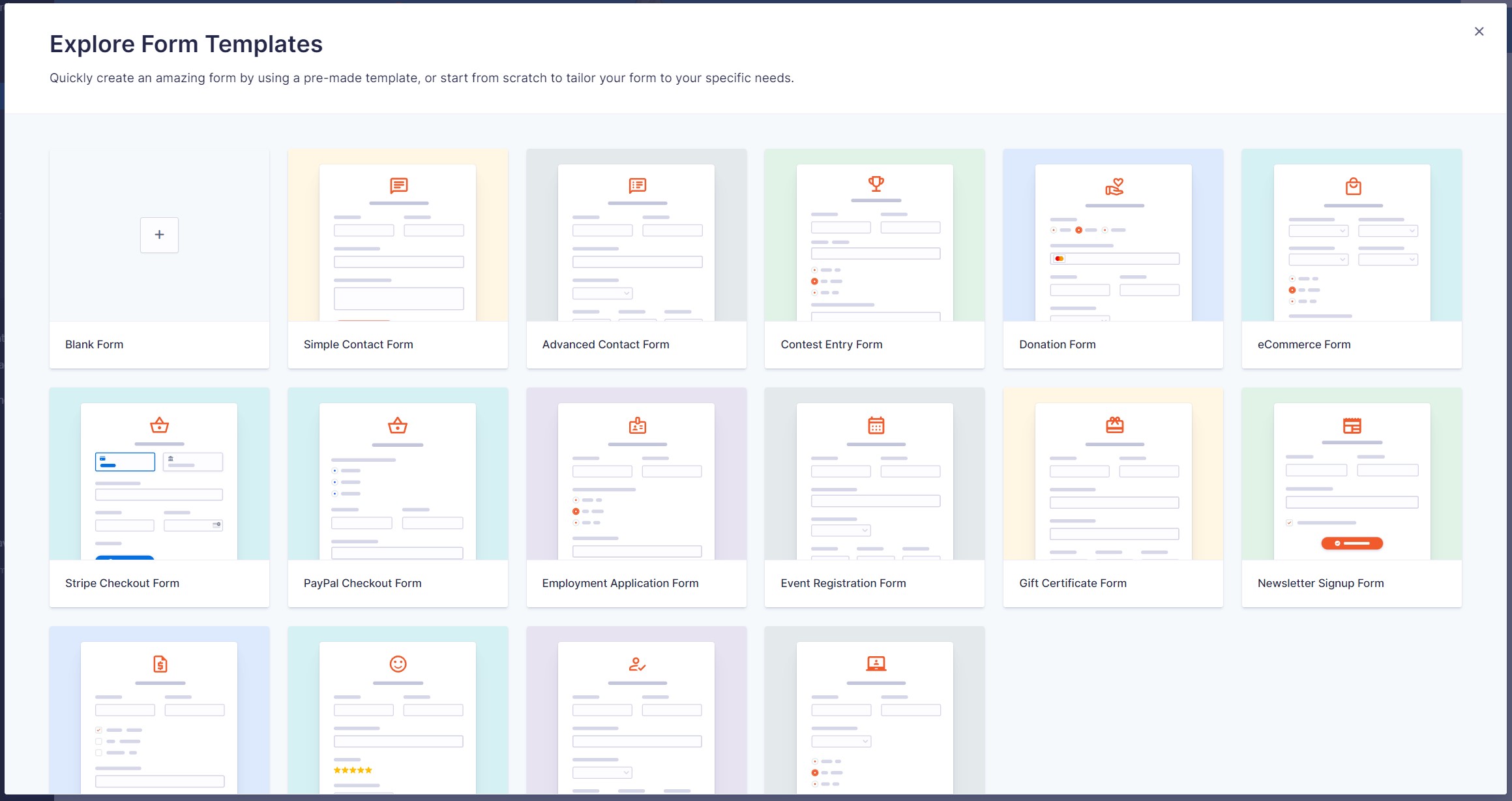
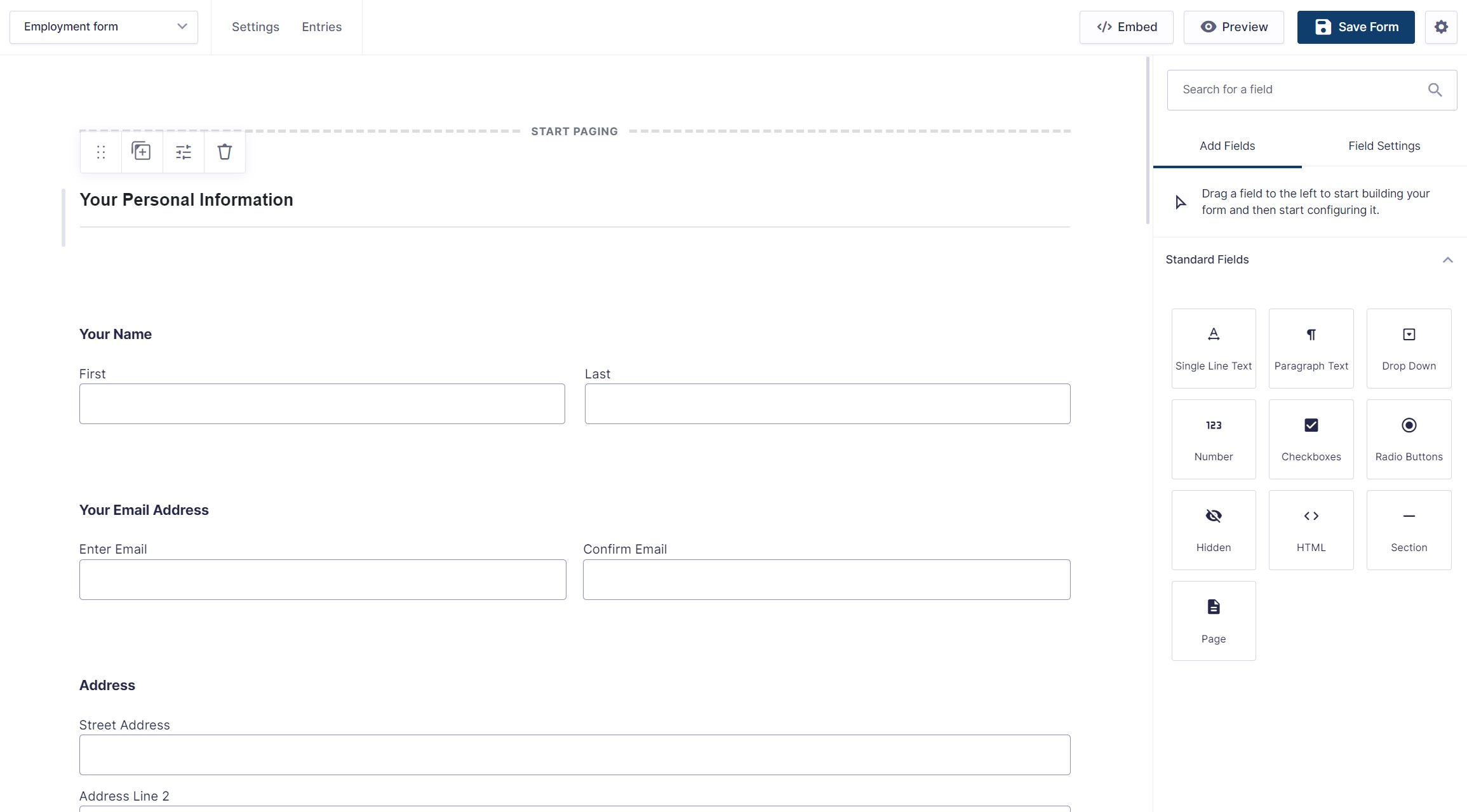
Gravity Forms has many templates to get started quickly, including a "Employment Application Form" template
Enhance your job application process using Gravity Forms confirmation messages, notifications and 3rd party integrations such as HubSpot, Zapier etc
Using Gravity Forms notifications you can send multiple emails to the applicant, yourself or any other party
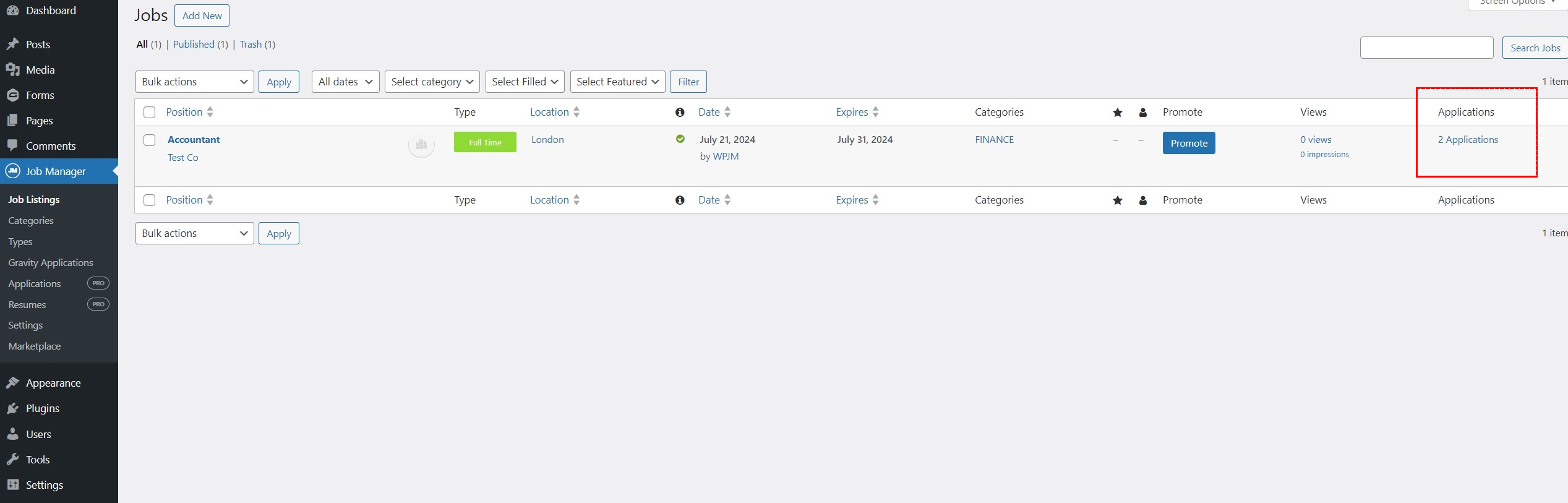
Extra "Applications" column showing number of applications
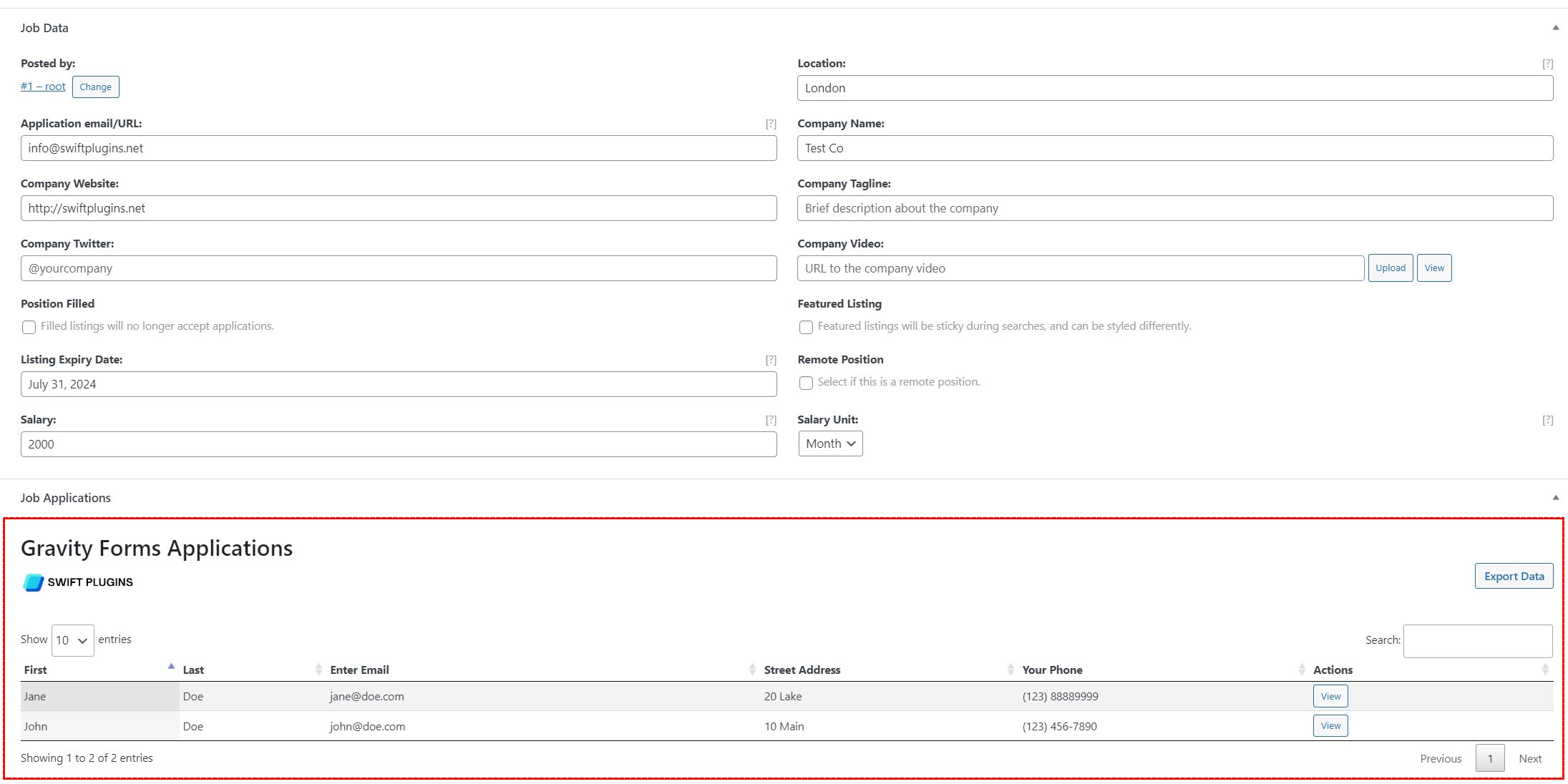
Extra Job Applications list on edit job page
Export Job Applications to CSV
Screenshots


How to Get Started
Go to the plugins page in WordPress. Search for "WP Job Manager" and click the "Install Now" button. Activate the plugin as well.
Link to plugin: WP Job Manager

Go to the Gravity Forms website and purchase it. Once you have the zip file downloaded. Install it on the plugins page in WordPress. Make sure the plugin is activated.
Link to Gravity Forms Website

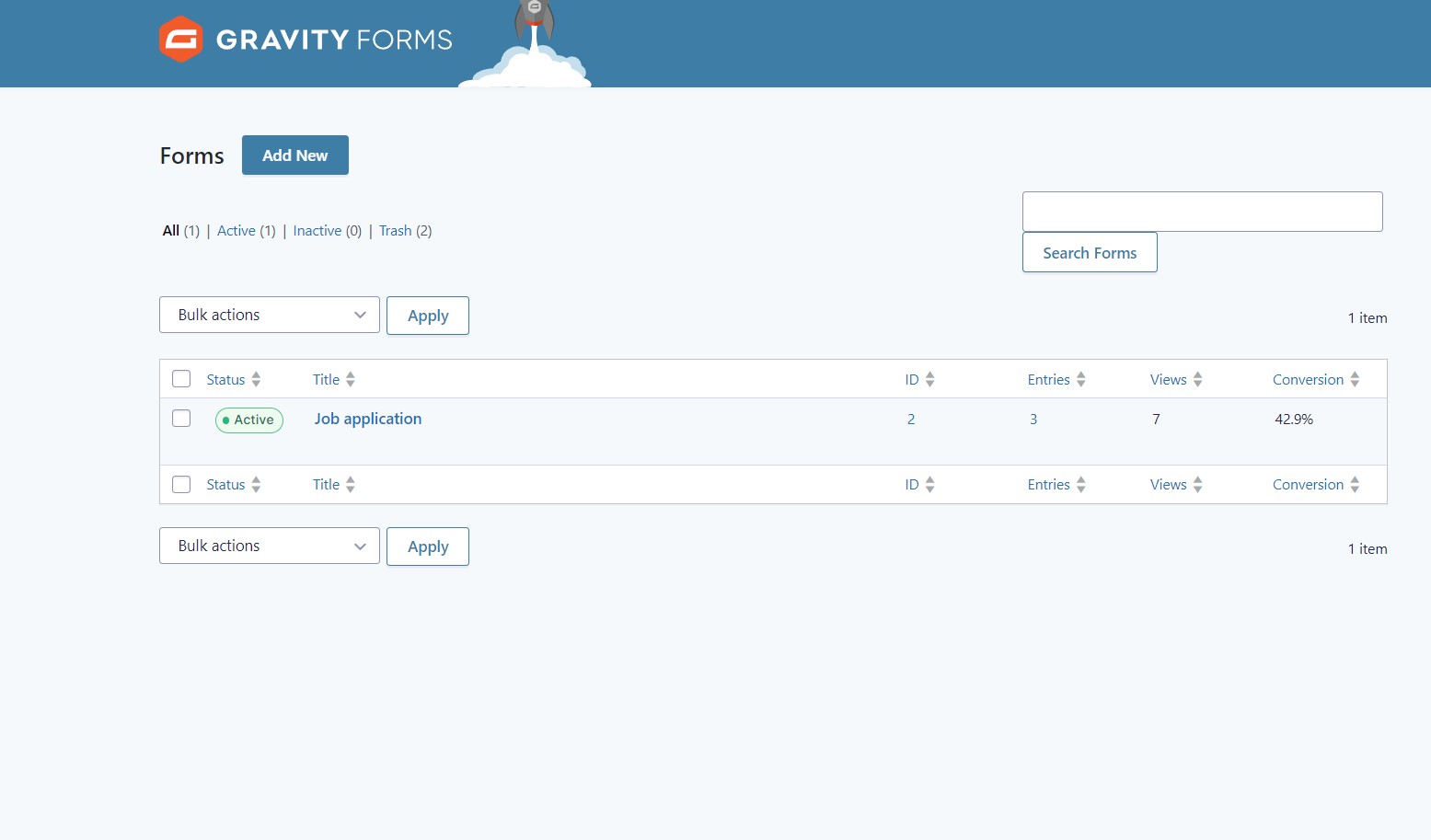
Select the Forms menu option. When you are on the forms page, click "Add New" to create a new form. You can create any from you want, customize it and save the form. For a quick start, use the "Employment Application Form" template.


Select Job Manager from the menu. Click "Add New" to create a new job listing. The next step will tell you how to link Gravity Form to your Job Listing.

Select Job Manager from the menu. Click "Add New" to create a new job listing. The next step will tell you how to link Gravity Form to your Job Listing.
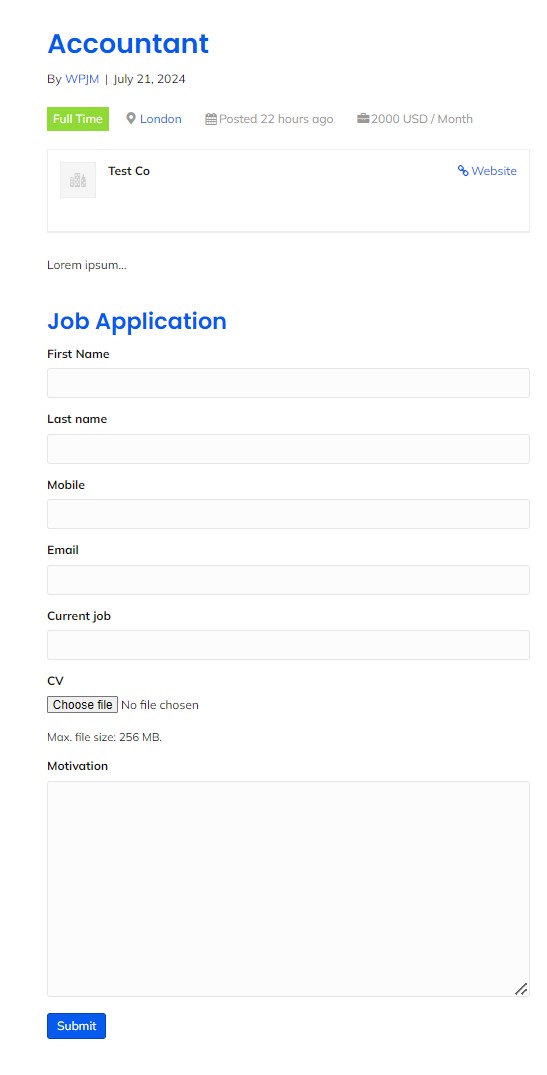
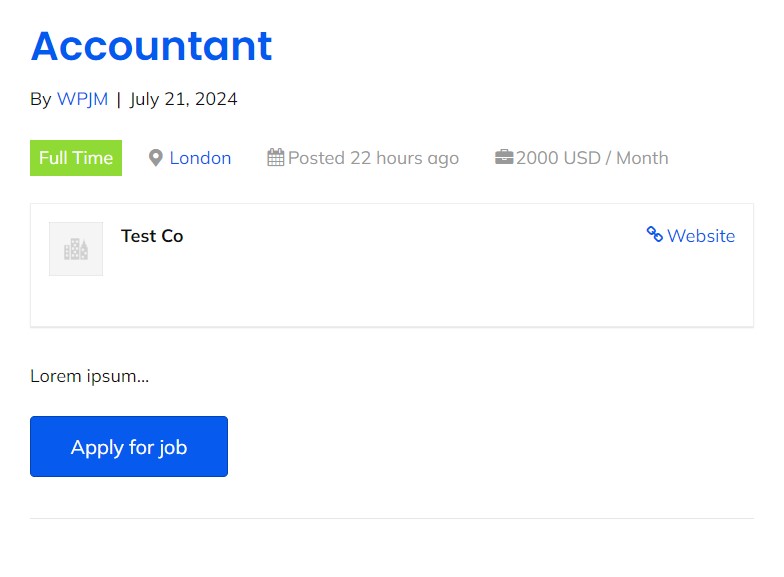
On your website, where you are displaying your Job Listings, select the Job that you created in step 4. Click the "Apply for Job" button, you should see the Gravity Form your created in step 3. Complete the form and submit it.


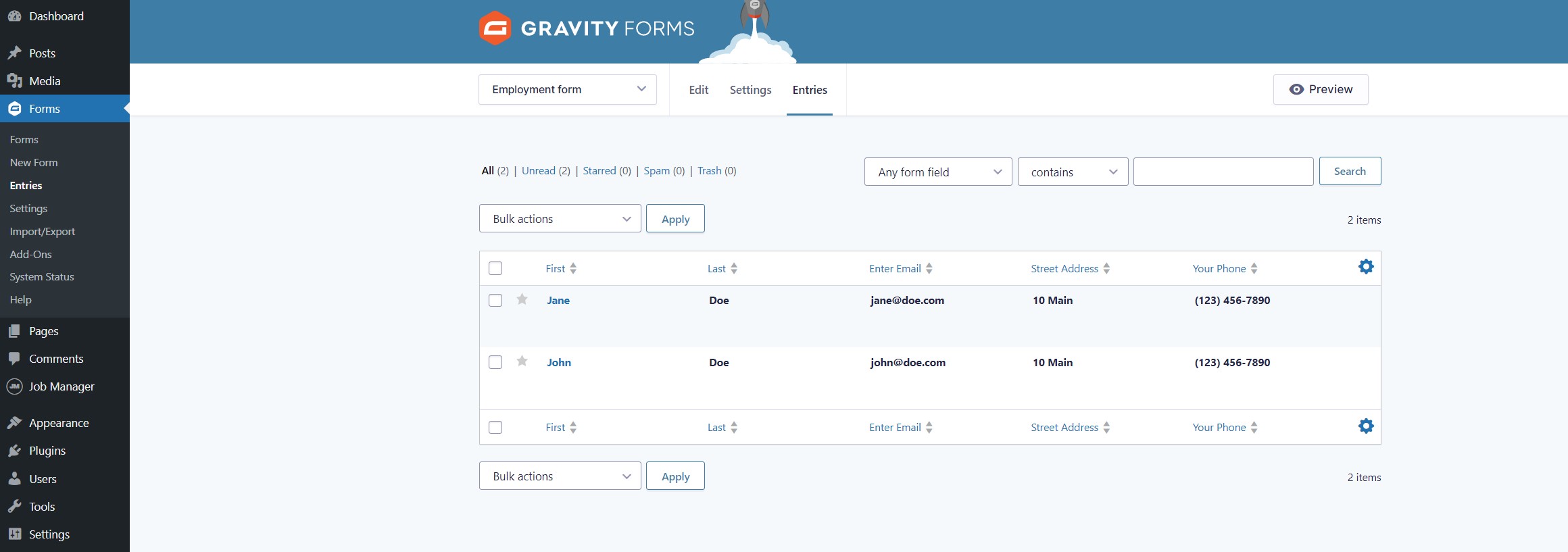
There are two places where we can see Job Applications. One is under the Job Listing in Job Manager.

The other is under the forms themselfs on the Gravity Forms page. Click on the Entries Link.

FAQ
$ 39 / year
Support
What is included?
Documentation